ClaudeCostWatch is a Windows system tray utility that monitors your Claude Code spend in real time. It reads the JSONL log files that Claude Code writes locally, calculates token costs using LiteLLM pricing data, and displays a running total in the tray tooltip. No API key required — it reads logs already on your machine.
- Live tray tooltip — today, this week, and this month at a glance, refreshed every 30 seconds.
- Per-project breakdown — a popup window showing cost totals broken down by Claude Code project.
- Historical reports — six-tab report window covering cost by day, by week, by project, and by task.
- Task logging — start and stop a named task (e.g.
PROJ-123) to track how much a specific piece of work costs; the result is appended to a markdown log file. - Daily spending threshold — set an optional daily limit; a balloon notification fires when it is exceeded and the tooltip highlights the overage with ⚠.
- Model rate overrides — customize per-model pricing via Edit model rates… in the tray menu; overrides take precedence over LiteLLM rates and are stored locally.
- Subscription plan support — if you use a Claude subscription rather than pay-as-you-go API access, costs are displayed as approximate equivalents.
- LiteLLM pricing — pricing data is fetched from LiteLLM and can be refreshed on demand via the tray menu.
- Unpriced model warning — if any models are encountered without pricing data, a warning appears in the tooltip so nothing is silently under-counted.
- Start with Windows — optional registry entry so monitoring begins at login.
- Single instance — prevents duplicate processes from running.
Cost figures shown by ClaudeCostWatch are approximate estimates only — actual charges may vary. Pricing data is sourced from LiteLLM and may not always reflect the latest rates. For official pricing, see claude.com/pricing. API users can review their actual usage and costs in the Anthropic console.
ClaudeCostWatch only tracks usage logged by Claude Code in its local JSONL files. The following are not captured:
- Usage via the Claude.ai web interface or mobile apps
- API calls made outside of Claude Code (e.g. from your own applications)
- Usage under a Claude subscription plan (shown as an approximate token-cost equivalent only)
- Any spend that occurred before Claude Code began writing local logs on your machine
Always treat reported figures as a directional guide, not a billing statement.
- Windows 10 or 11
- .NET 8 or later (Windows desktop runtime)
- Claude Code installed and in use (the utility reads its local JSONL log files)
- Download or clone the repository and build the solution in Visual Studio.
- Run
ClaudeCostWatch.exe— a confirmation dialog will appear and the icon will appear in the system tray. - Right-click the tray icon to access the menu: view a project breakdown, open the historical reports, start task logging, set a daily spending limit, edit model rate overrides, refresh pricing, or open the Claude JSONL log folder.
- Optionally enable Start with Windows from the tray menu so monitoring begins automatically at login.
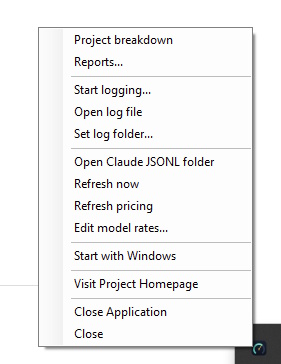
The system tray right-click menu.
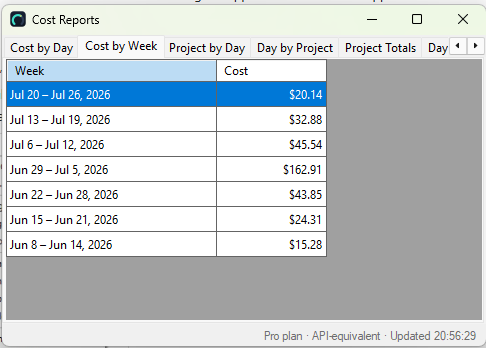
The Cost Reports window, with tabs for day, week, project, and more.
Use Start logging… in the tray menu to associate spend with a task ID such as
PROJ-123 or #456. While logging is active, the tooltip shows the running
cost for that task. When you stop logging, the result is appended to usage_log.md in
your chosen log folder. Use Open log file from the menu to view it.
Use Set daily limit… in the tray menu to set an optional daily spending cap.
When today's spend meets or exceeds the limit, a Windows balloon notification fires once and the
tooltip prefixes Today's cost with ⚠. The alert resets at midnight so it can fire again the
following day. Use Clear daily limit to remove it, or Daily limit: $X.XX…
to change the value. The threshold is stored in settings.json and persists across restarts.
Have an idea to improve this page? Let me know